Convert Markdown to Word
Paste Markdown or drop an .md file. You get a .docx that opens in Word, LibreOffice and Google Docs. The conversion runs in your browser, the file never leaves your computer.
What arrives in Word: our test
We tested the export on 17 October 2026 with a test file containing 13 Markdown elements: three heading levels, bold, italic, strikethrough, inline code, a link, a nested list, a task list, a numbered list, a table with three alignments, a quote, a code block, a horizontal rule and an image.
The Word file was 10.8 KB. We opened it in LibreOffice Writer 24.2 and also read its structure with python-docx, so you see not only how it looks but which style Word assigns internally.
The key result: headings arrive as Heading 1 to Heading 6. The navigation pane and an automatic table of contents work right away. Many converters only set large bold text.
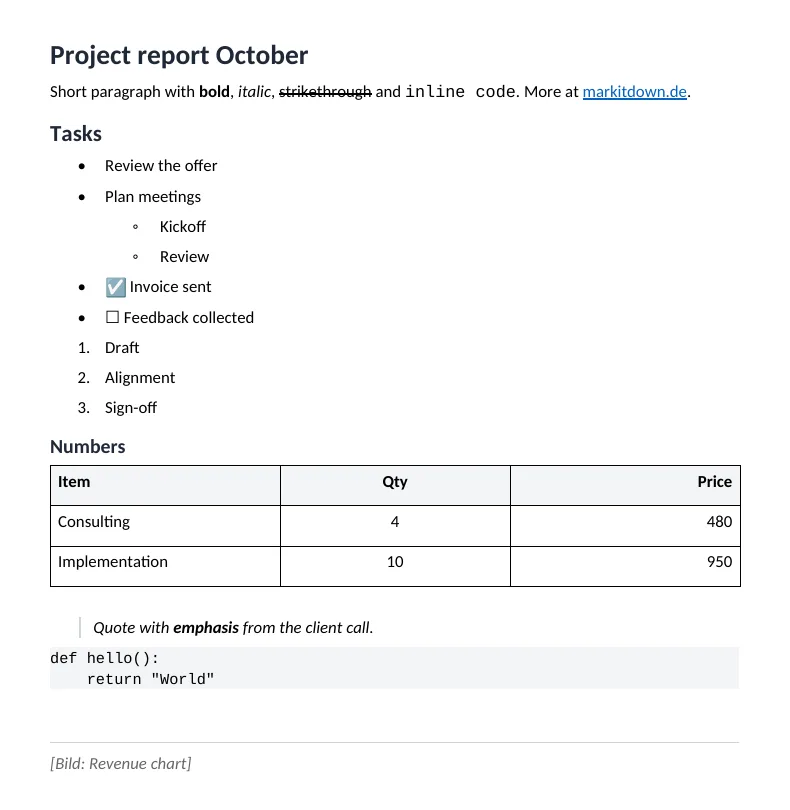
| Markdown element | Result in the Word file |
|---|---|
| Headings # to ###### | Styles Heading 1 to 6, visible in the navigation pane |
| Bold, italic, strikethrough | Kept as character formatting, also combined |
| Links | Clickable hyperlinks with the link text from your Markdown |
| Bullets and numbering | Real Word lists up to 6 levels. Each numbered list restarts at 1 |
| Tables | Word table with a grey header row that repeats on following pages. Left, centre and right alignment are kept |
| Task lists - [x] | Checked and empty boxes as characters, not clickable in Word |
| Quotes | Indented, italic, with a grey line on the left |
| Inline code and code blocks | Courier New, code block with grey shading. No syntax colours |
| Horizontal rule --- | As a line below an empty paragraph |
| Images | Not embedded. The alt text appears as [Image: …] in their place |
Method: test file with 13 element types, export in Chromium, checked in LibreOffice Writer 24.2 and with python-docx. As of 17 Oct 2026.
Responsible for this page: Adriano Caruso, Caruso Consulting, Limburg an der Lahn, Germany.
How the .docx is built
Markdown is split into blocks
The marked parser reads your text as GitHub Flavored Markdown and recognises headings, lists, tables and code blocks as separate blocks.
Each block gets its Word counterpart
# becomes the style Heading 1, - a Word bullet list, a pipe table a Word table. Body text is Calibri 11 pt.
The file is written in your browser
The docx library builds the file on your device. For our test file it took 0.25 seconds. No server reads along.
Where the export reaches its limits
For reports, proposals and minutes the export is enough. The biggest drawback is missing images. These points need manual work in Word:
- Images are not embedded. Add them in Word via Insert, Pictures. The alt text marks the spot.
- Footnotes written as [^1] and formulas in $…$ stay as plain text.
- There is no custom template. Add header, page numbers and brand colours in Word afterwards.
- HTML tags inside the Markdown appear as text in Courier, they are not rendered.
- No table of contents is generated. Because headings are real styles, you only click References, Table of Contents in Word.
Our take: for ChatGPT or Claude answers, project notes and documentation this export is the fastest route. For a book with footnotes, citation style and a custom template use Pandoc. The comparison is in our guide MarkItDown vs Pandoc vs Markdownify.
Why people move Markdown into Word
ChatGPT and Claude as a Word document
Both copy answers as Markdown. Paste, convert, and the outline appears in Word with real headings.
When the recipient only uses Word
Authorities, clients and law firms often want a .docx with track changes. You keep writing in Markdown and deliver Word.
Leaving Obsidian and Notion
Exported .md files from Obsidian or Notion become a document colleagues can edit without knowing Markdown.
README as a manual
A README.md from GitHub becomes a Word file for training or sign-off. Tables and code blocks stay readable.